Frage:
When working with two monitors, if you move a window (e.g., attach device) to one monitor and then use the PC with only one monitor, the editor window appears on the second monitor, which is no longer there. Is there a way to bring the window back to the primary monitor?
Answer
Yes, this is possible. If a dialog box is on a second monitor, for example, you can bring it back like this:
- Click on the PLC Designer icon in the taskbar (the color of the background in the taskbar indicates whether PLC Designer is "visible" or minimized. It must be "visible." Click again if necessary).
- Press ALT + Space bar.
- Press V. Press the cursor key (right or left). Now press the Enter key. Press
- Press the cursor key (right or left)
- The PLC Designer now "sticks" to the mouse pointer and can be moved into the visible area with the mouse.
If the PLC Designer is in full-screen mode, this key combination can be used:
- Click on the PLC Designer icon in the taskbar (the color of the background in the taskbar indicates whether the PLC Designer is "visible" or minimized. It must be "visible." Click again if necessary).
- ALT + Space bar Press
- Press W - The PLC Designer is now in window mode and can be moved to the visible area using the first method:
- Alt-Spacebar --> Cursor key --> Move to the visible area with the mouse.
Note: This is not a "magic shortcut" but easy to explain:
Using Alt+Space bar opens a system menu in the upper left corner of a Windows application:
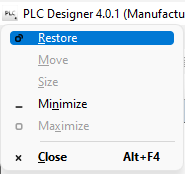
The entries can be activated via the keyboard using the underlined letters, the entries can be activated via the keyboard:
M such as move, R restore (full screen-->window):
If the PLC is in full-screen mode, it must be restored using R or r to be switched to window mode.
Unfortunately, this causes the system menu to disappear and you need to press Alt-Spacebar to call it up again.
Search terms: PLCDesigner, monitor, screen, editor, outsource. [Automatic Translation]