After the firmware has been restored successfully, the controller will start with the IP address 192.168.5.99. The IPC parameters (WebConfig) were reset to their default settings.
For the p300 and p500 panel controller exist two different Windows licenses (Core and Professional). A change of the Windows license is not possible by a firmware download. Please take care that you download the firmware with the matching Windows license of the device.
More information you will find in the AKB article
'Restoring a backup with a Windows license other than the Windows license of the p500'.
During the first restart after restoring the firmware, the devices of the c300 and p300 series will require a longer starting time (some minutes). During this time, the devices must not be disconnected from the mains and you will only see stripes or a black screen on the p300.
Lenze Software may contain software elements that are licensed as free software or open source. The licensing terms and conditions of the open source software components used in this product are included in the package offered here for downloading. They can be found in the "License" directory once you have downloaded and extracted the file.
Software installation: How to restore the controller firmware:
Connect a USB stick to your workstation.
Unless already available: Create a \Backup folder in the base folder of your USB stick.
Save the appropriate file for restore from the attachment into the \Backup folder. Firmware V3.21.3 for:
Unpack the zip file via context function 'All extract' into this folder.
Make sure that underneath the InitRestore_xxxx folder, the same folder has not been created once again.
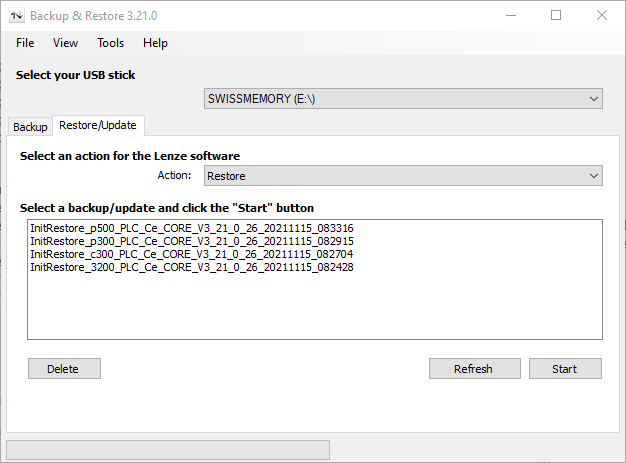
Start the latest version of the »Backup&Restore« software.
Select the USB stick.
Select the
Restore/Update tab.
Select Action:
Restore.
In the case of a Restore action, a controller backup will be created first to ensure that (in the event of an error) the original state can be reconstructed. After this, you will find a file called IPCBackup_xxxx on the USB stick. On the USB stick, there must be sufficient memory space available for this file.
Select firmware file 'InitRestore_xxxx':
Click the
<Start> button.
After completion of this action, connect the USB stick to the controller.
Boot the controller. The firmware will be installed.
Status LEDs are used for signalling. The controller is equipped with LEDs that show the current operating state:
While restoring the firmware, »Backup & Restore« will control the
Error and the
Status 1 LED:
Signalling of the status LEDs
Error
Status 1
Active
-
blinking green (0.5 Hz)
Error Possible causes:
Severe error (cancellation)
SD card is not available/not inserted correctly into the slot
Detailed information can be found on the USB stick
in \Backup\Log.txt