OEMs desire to customize the end user interaction experience to their specific application need. The i500 series inverters have several features that facilitate this.
Once the OEM has developed their drive configuration for the application (starting, stopping, accel., decel., PID, I/O function triggers, advanced functions, etc.) consider setting up the following three drive features:
Favorites Menu:
The i500 drive features a configurable list of up to 50 parameters of the user's choosing. OEMs can populate this with any combination of diagnostic and configuration parameters that they deem important for the user to have access to.
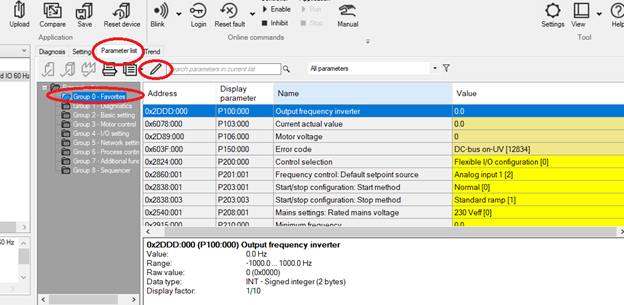
To configure the FAVORTIES Menu using EasyStarter first click on the "Parameter list" tab. Next click on "Group 0- Favorites" in the tree navigation. Now to start editing click the pencil icon to launch the "edit Favorites" pop-up window.
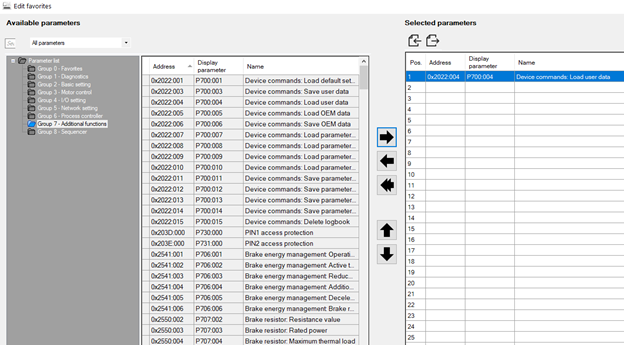
The parameters in the drive are shown on the left. The parameters selected in the FAVORITES menu are shown on the right. First the double arrow left Icon can be used to remove all currently configured parameters from the FAVORITES menu. The user may then use the tree navigation on the left of the window to navigate to the parameters of interest individually. Use the arrow right icon to then make that selected parameter accessible in the FAVORITES menu list. To remove an individual parameter from the FAVORITES menu use the arrow left icon. Once complete, click on "OK" in the lower right of the "Edit Favorites" pop up window.
 Access Protection:
Access protection can be used to build upon the concept of customizing the end user interaction experience by restricting their write access to only those parameters preset in the FAVORITES menu.
The i500 drive features the ability to set to two PIN numbers to restrict parameter access. When enabled upon POWER ON no write access is granted. The first pin (PIN1) can allow write access to the FAVORITES menu only. The second PIN (PIN2) can be entered to allow full write access to the drive's parameter set.
OEMs can configure a FAVORITES menu appropriate for their end user's use in the application and then only provide the end user with PIN1 so that the user can adapt those specific parameters for the end installation. The OEM can use PIN2 for its service personnel whom need to provide advanced support.
It should be noted that Access Protection does not affect the network drive control words, it only restricts the programming parameters from the programming interfaces (i.e. the keypad and EasyStarter).
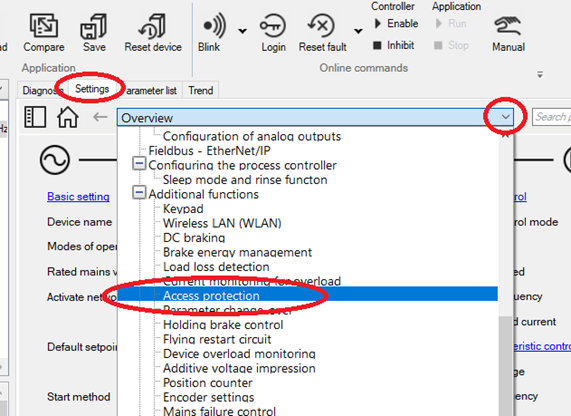
To configure Access protection for this operation first click on the "Settings" tab. Next click on the pull down to access the navigation list and pull down and click on to select "Access protection".
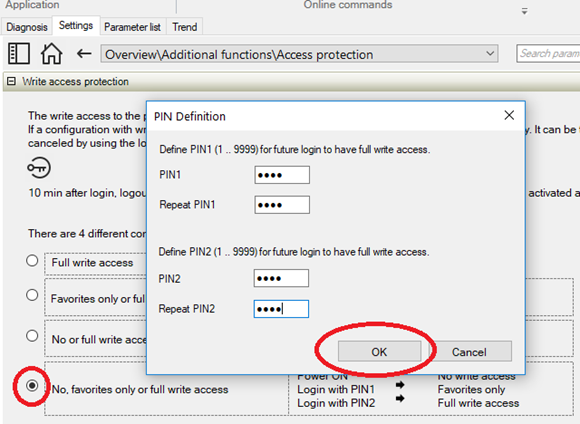
Now select the “No, favorites only or full write access”
radio button. On the configuration
pop-up enter the PINs and then click “OK”.
Save OEM data & Load OEM Data:
As a final step it is recommended the OEM execute a Save OEM Data command. The OEM can then always have their own default parameters available in the drive. Users may (if the accessing with the appropriate PIN) alter data in the drive; however the drive can be returned to the OEM default state at any time by executing the Load OEM Data command. To facilitate this activity it is recommended to add P700.05 (Load OEM Data) to the FAVORITES menu to facilitate this action by end users from the keypad.
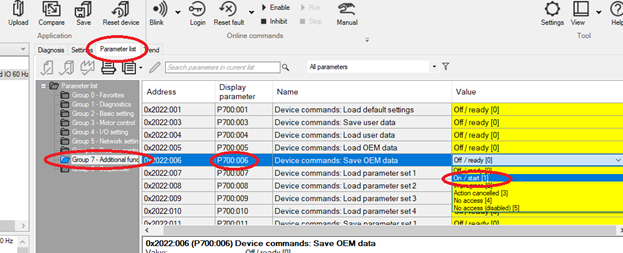
To Save OEM data first select the "Parameter list" tab. Next click on "Group 7- Additional functions" in the tree navigation. Navigate to P700.06 "Save OEM data" and set the parameter value to "On/ start [1]" to execute the command.