Functionality extension:
With EASY UI Designer version 1.8 there are two new touch keyboards available, with more flexibility and a better system integration.
Main functions:
Dynamic Limits: Display and processing dynamically defined limitsDynamic decimal places: Adjustment of the decimal places during runtime via the SetProperty actionLocalized texts: Automatic switching of additional texts in linked unit class according to the active language.Custom keys Configuration of individual keys via the KeyStyleItems collection (layout, label, interaction).
Advantages of the new keyboards
- Greater flexibility in input
- Dynamic adjustment of limit values and decimal places
- Correct language switching for localized texts
- Custom design of individual buttons
Contained in the following products:
EASY UI Designer V1.8
Application:
The two new touch keyboards are located in a new project in the client folder under dialogs/keyboards.
The connection of AlphanumericTouchpadDialog.html and NumericTouchpadDialog.html to a control is achieved using the Use Touchkeyboard property in the Touchkeyboard category of the NumericVarIn and TextVarIn input controls.
How can I integrate the new keyboards into an existing project?
- Update the project using the project configurator.
- Copy both dialogs to the client using Add New Element.
(Numeric Touchpad & Alphanumeric Touchpad)
- The property Use Touchkeyboard is not visible (custom styles are not updated), please use the option Style > Edit current to show the property and use the checkbox to the right to always display it in the custom style. If you want the keyboards to open by default, set the property in the style to true.
- If the property Use Touchkeyboard is used, the previously available showKeyboardDialogAction for opening the previous touch keyboards is not executed, so that the two solutions do not interfere with each other.
- Download the attachment and unzip it.
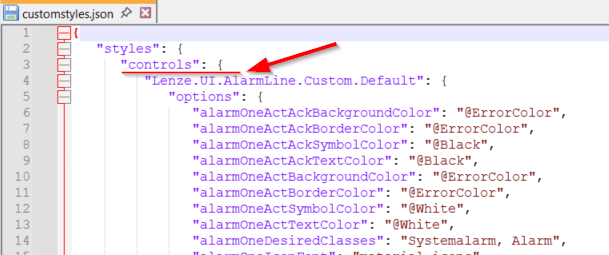
- In the files *YourProject*_Client\resources\styles\customstyles.json & \customstyles.css, the entries contained in the appendix must be added according to the file type.
For a project created in LenzeCyan Style, use the contents of the “cyan” folder in the attachment.
For a project created in Lenze Style, use the contents of the “default” folder in the attachment.
The contents of the archive file “customstyles.json” must be inserted into the existing structure (syntax) of the project file of the same name.
Can I also integrate the previous keyboards into a new project?
If you need to integrate the previous keyboards into a new project, follow these steps:
- Manually add the following templates to the project:
AlphabeticalKeyboardDialog.html, AlphabeticalLightKeyboardDialog.html, and NumericKeyboardDialog.html - Bind the showKeyboardDialogAction in the style to a NumericVarIn/TextVarIn so that it is included in all instances
- Set the property use Touchkeyboard in
NumericVarIn/TextVarIn in the style to false.
Note:
If the new keyboards are used, the option
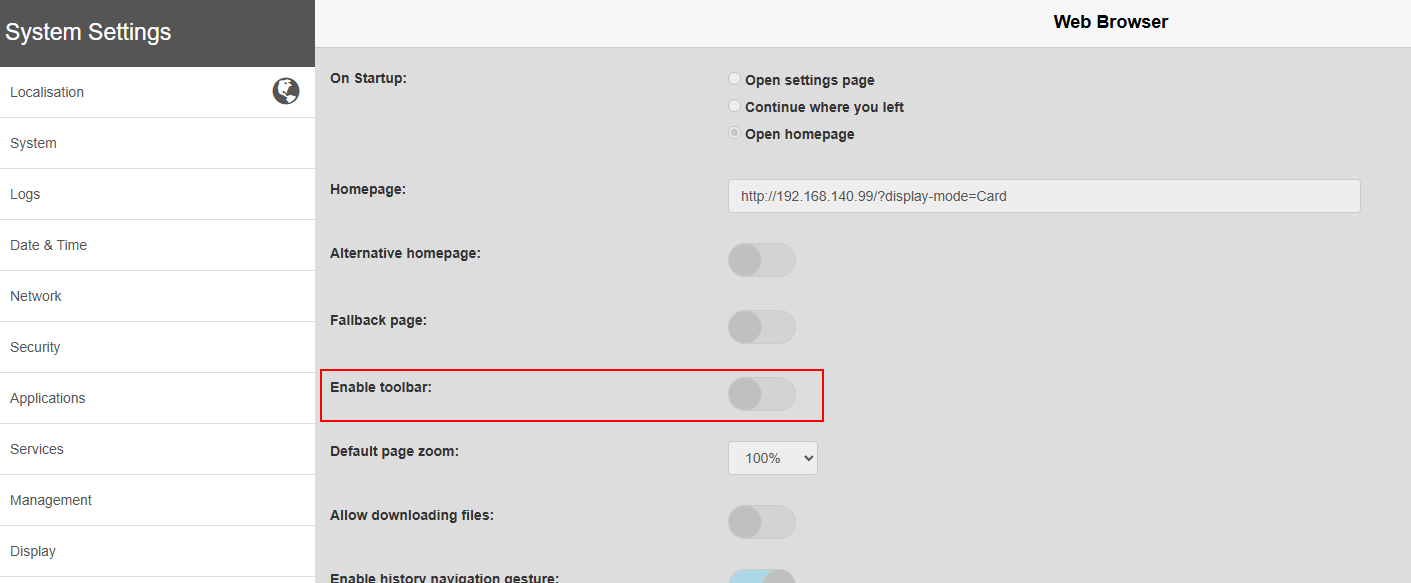
use system virtual keyboard on the EXOR panel must be set to false.

However, this results in the restriction that the system keyboard can no longer be called up when the toolbar is enabled.
[Automatic Translation]